Developers: Lazy Load Shopify Related Products to Cut Page Lag
Set up Shopify related products, use Search & Discovery overrides, lazy load the Section Rendering, and show 2–4 cards that convert.
Developers: Lazy Load Shopify Related Products to Cut Page Lag
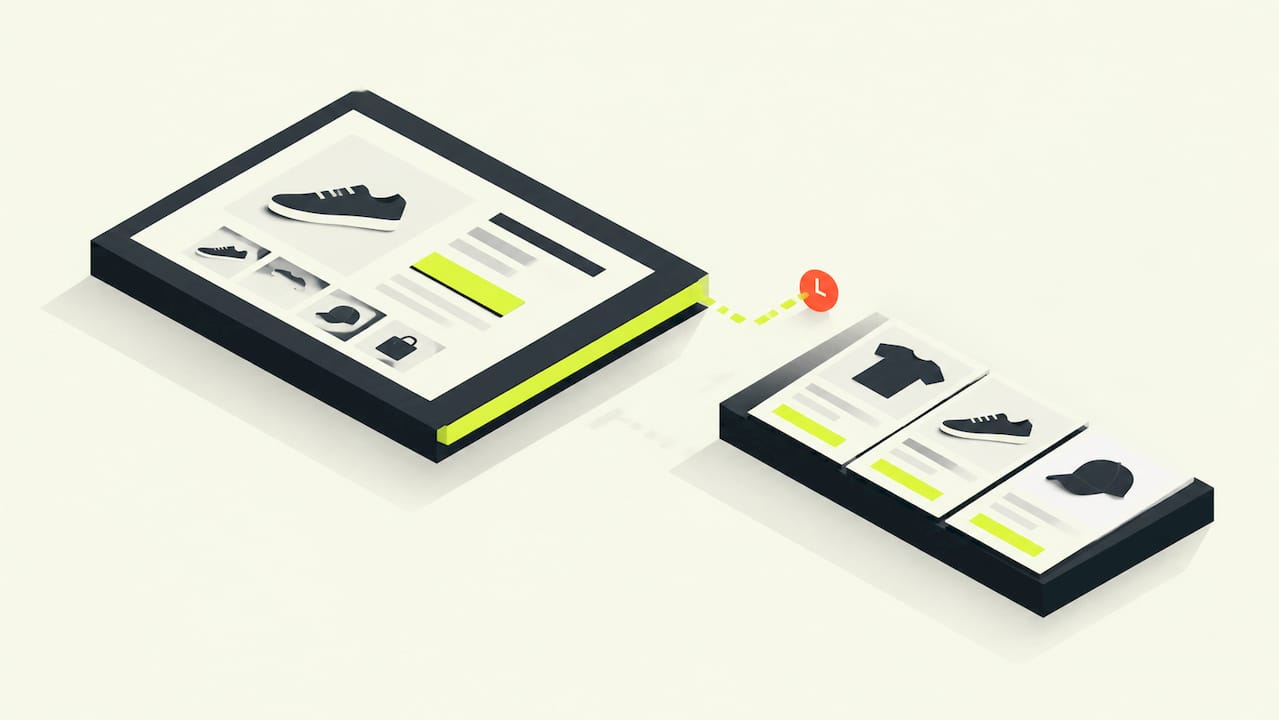
Related products on Shopify are the “you may also like” items that show substitute or similar picks under a product page, and the right move is simple: use Shopify’s native Product Recommendations API for real production use, keep collection-based Liquid only as a quick fallback, and use the Search & Discovery app when you need to manually override up to 10 items per product.
TL;DR:
- Shopify’s related products recommendations rely heavily on purchase history, product description similarity in English, and shared collections, with relevance improving as order data accumulates.
- Out-of-stock related items can still display if “continue selling when out of stock” is enabled, but complementary products require inventory greater than zero to appear.
- Manual overrides allow selecting up to 10 recommended products per item, with display modes to prioritize manual picks or blend them with algorithmic suggestions; limiting to 2 to 4 cards boosts conversion.
- Recommendations are often blocked by product eligibility issues, such as drafts, zero prices, unpublished channels, or stock limitations, making checklists essential before deployment.
- For stores with low order volume or multilingual catalogs, Shopify’s native engine struggles; specialized solutions like Indexa offer AI-driven, continuously tuned relevance without setup hassle.
Table of Contents
- What Are Shopify Related Products (and How They Differ From Complementary Products)?
- How Shopify Generates Related Product Recommendations
- How to Add and Configure Related Products in the Shopify Admin
- Developer Implementation: the Recommendations Object and Lazy-Loading Pattern
- Best Practices for Related Product Cards That Actually Convert
- A Quick Checklist Before You Ship This
- What This Guide Gets Right That Most Advice Skips
- When Native Recommendations Aren’t Enough
- Shopify Docs Worth Bookmarking
- Sources
- FAQ
What Are Shopify Related Products (and How They Differ From Complementary Products)?
Related products are substitutes. They are alternatives, other jackets in the same style, competing versions of the same gadget, that give a shopper another option if the current product isn’t quite right. Complementary products work differently: they are add-ons, the phone case for the phone, the belt for the pants, meant to raise the order total rather than replace the item on screen.
That distinction changes where each one earns its keep. Substitutes reduce bounce by catching shoppers who were never going to buy the exact item they landed on. Complementary picks drive cross-sell and average order value once someone has already decided to buy.
Shopify’s recommendations engine bakes this difference into its API through an intent parameter, which can be set to related or complementary depending on which behavior you want from a given block. Store owners often run both on the same page: substitutes above the fold near the product gallery, complements lower down near checkout.
- Related = “here’s another option like this one”
- Complementary = “here’s what pairs well with this one”
- Intent parameter in the recommendations API controls which logic Shopify applies
How Shopify Generates Related Product Recommendations
Shopify’s engine pulls from three signals: purchase history (what customers actually bought together), product description similarity, and shared collections. The more order data a store accumulates, the sharper these recommendations get, which is why a brand-new store often sees thinner, less relevant suggestions than one that’s processed thousands of orders.
Not every product in your catalog is eligible to appear. Shopify filters out anything that fails a basic checklist:
- The product must be active, not archived or in draft
- It must be priced above $0
- Gift cards are excluded automatically
- It has to be published to the Online Store sales channel
- It can’t already be sitting in the visitor’s cart
Stock rules add another wrinkle. Shopify’s Search & Discovery documentation notes that complementary products require inventory greater than zero to show up, while related products can still display out-of-stock items if the “continue selling when out of stock” setting is enabled on that variant.
Two limitations catch merchants off guard. First, Shopify’s recommendation algorithm excludes the all and frontpage collection handles when matching by collection overlap, so those don’t count as a similarity signal. Second, description-based matching only works on English-language storefronts, a real caveat for multilingual stores expecting the same recommendation quality across locales.
How to Add and Configure Related Products in the Shopify Admin
Most themes released in the last few years support a related products block out of the box, but you still need to confirm and configure it. Here’s the practical workflow:
- Open the theme editor and navigate to a product page template. Look for a section called “Related products,” “You may also like,” or similar, depending on your theme.
- Add the section if it’s missing. Click “Add section,” find the recommendations block, and drop it wherever makes sense on the template, usually below the product description or reviews.
- Go to Apps > Search & Discovery > Product recommendations in your Shopify admin to take manual control.
- Select up to 10 products per item as manual related or complementary recommendations. You aren’t stuck with whatever the algorithm decides.
- Choose your display mode. Shopify’s Help Center explains the toggle between “only manual” (show exactly what you picked, nothing auto-generated) and a hybrid “ahead” mode, where your manual picks appear first and Shopify’s algorithm fills in any remaining slots.
- Preview and save. Check a handful of product pages across different categories before publishing, since manual overrides on one bestseller won’t reflect how the fallback looks on a low-traffic SKU.
If a product you expect to see is missing, run through the eligibility checklist above first. Nine times out of ten, it’s a draft status, a zero price, an unpublished sales channel, or a stock setting quietly blocking the item.
Developer Implementation: the Recommendations Object and Lazy-Loading Pattern
For developers, the cleanest path runs through the recommendations object and the /{locale}/recommendations/products endpoint, called with a product_id and an intent of related or complementary. This is the same data source powering the admin-configured recommendations, exposed for custom theme work.
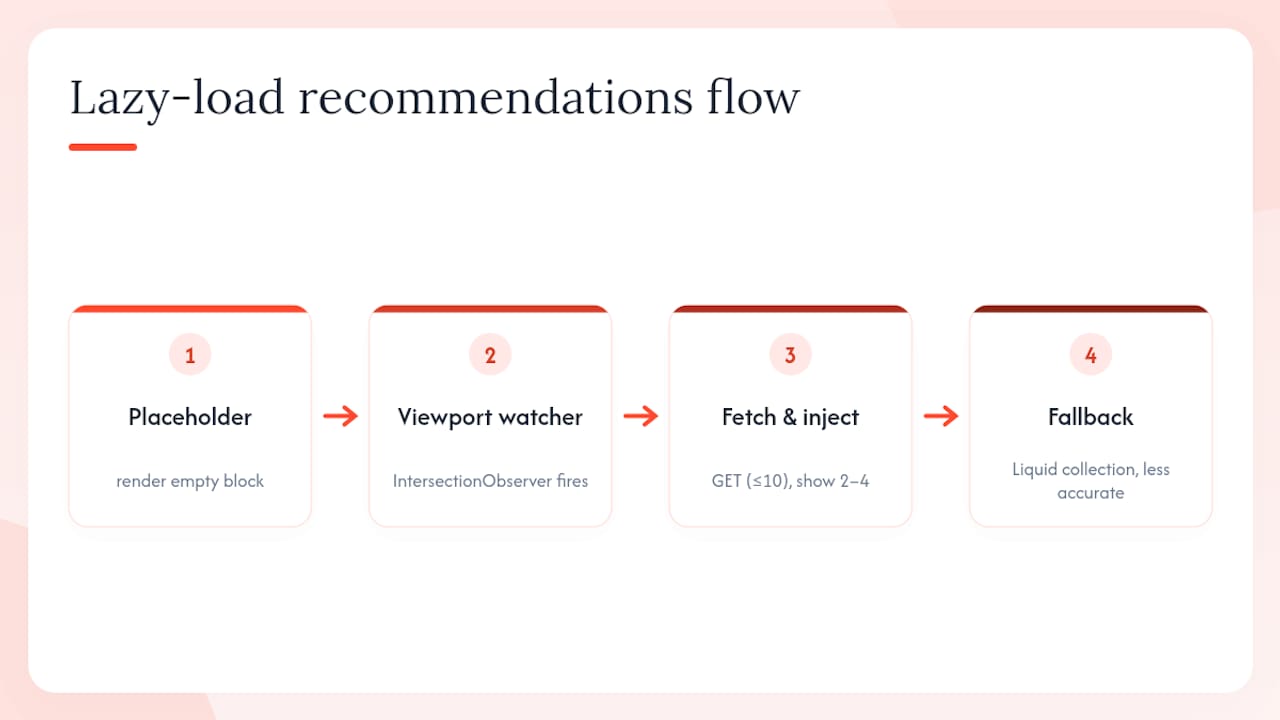
The biggest performance mistake is rendering recommendations synchronously with the rest of the product page. Because the recommendations object isn’t populated until Shopify actually processes that request, blocking the initial page render on it slows down the one page in your store that needs to load fast: the product page shoppers are deciding on right now.
The fix is a Section Rendering pattern: render an empty placeholder server-side where the related products block belongs, then fetch the section’s HTML asynchronously using
routes.product_recommendations_urland swap it into the placeholder once it arrives. Pair that with anIntersectionObserverso the fetch only fires when the block scrolls into view, and you avoid both a slow first paint and unnecessary API calls for shoppers who never scroll that far.
A rough version looks like this in Liquid plus JavaScript:
<div class="product-recommendations"
     data-url="{{ routes.product_recommendations_url }}?section_id=product-recommendations&product_id={{ product.id }}&intent=related"
     data-product-id="{{ product.id }}">
</div>
const observer = new IntersectionObserver((entries) => {
  entries.forEach(entry => {
    if (entry.isIntersecting) {
      fetch(entry.target.dataset.url)
        .then(response => response.text())
        .then(html => { entry.target.innerHTML = html; });
      observer.unobserve(entry.target);
    }
  });
});
document.querySelectorAll('.product-recommendations').forEach(el => observer.observe(el));
Request up to 10 items from the API if you’re planning pagination or a carousel, but render only 2 to 4 on initial view. LearnShopify’s implementation guide covers the collection-based Liquid fallback for stores that need something rendering immediately without waiting on the API, though it trades accuracy for speed.
Best Practices for Related Product Cards That Actually Convert
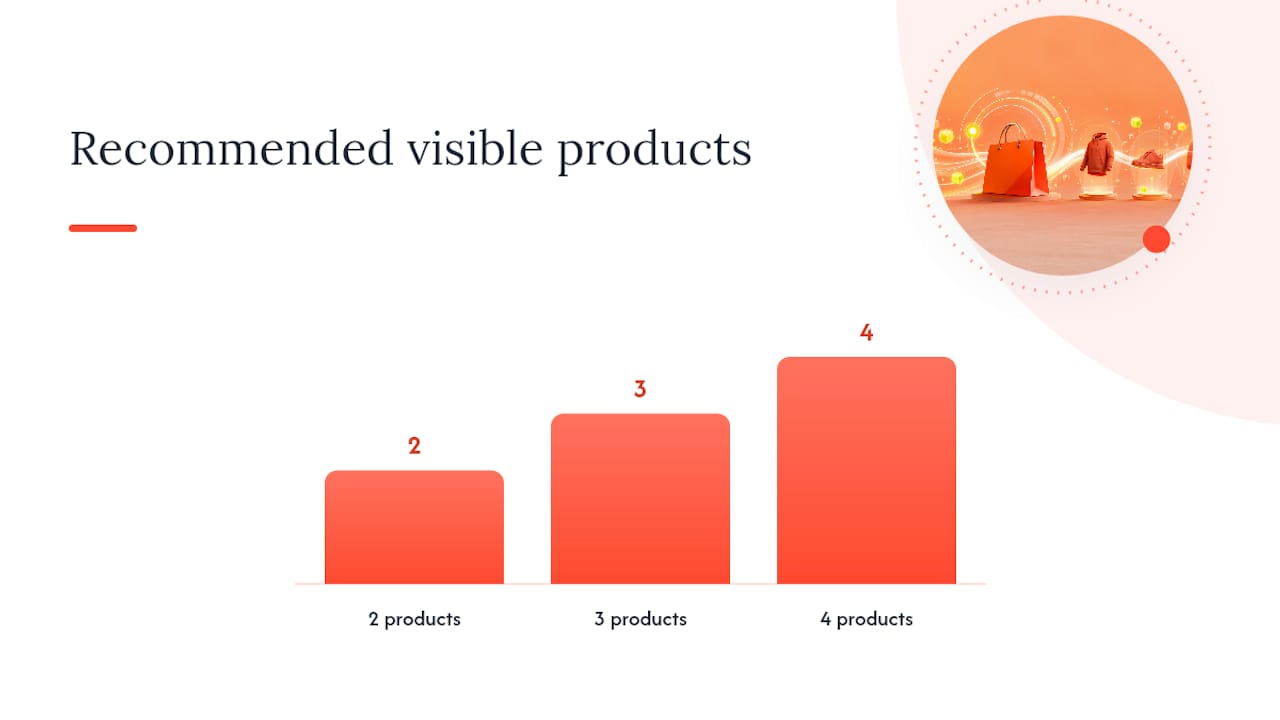
Cap the visible count at 2 to 4 products. Shopify’s own guidance backs this: more choices past that range tend to dilute attention rather than add value, and on mobile it just means more scrolling before checkout.
- Use consistent image sizes with a fixed aspect ratio and proper
srcsetattributes so cards don’t cause layout shift as images load - Match header copy to intent: “You may also like” for substitutes, “Pairs well with” for complementary items
- Track clicks and conversion attributable to the recommendation block through Shopify Analytics rather than assuming the section is working
- A/B test card count and header copy. A shift from three cards to four, or a copy change from generic to specific, can move numbers more than expected
- Confirm keyboard focus states and meaningful alt text on every product image and link so the block is usable with assistive technology, not just visually
Pro Tip: Don’t treat the related products section as “set and forget” once it’s live. Pull the click-through data from Shopify Analytics every couple of months, because as your catalog and order history grow, the algorithm’s picks shift too, and last quarter’s high-performing pairing might quietly go stale.
For deeper page-level optimization work, a resource like Fylde Digital’s product page SEO checklist is worth pairing with your recommendation setup, since search visibility and on-page conversion tend to move together.
A Quick Checklist Before You Ship This
Before calling your related products setup done, run through five checks: confirm your theme actually supports the recommendations section, verify eligibility filters aren’t silently hiding products you expect to see, decide whether Liquid or the API fits your performance needs, keep the visible count at 2 to 4 cards, and watch Shopify Analytics monthly rather than assuming the section is working on its own.
What This Guide Gets Right That Most Advice Skips
Most Shopify content treats related products as a checkbox: turn it on, move to the next task. That undersells how much the eligibility rules alone determine whether the feature works at all. A merchant who spends an afternoon cleaning up draft statuses, stock settings, and unpublished variants will often see better recommendation quality than one who installs a third-party app and changes nothing else.
The conventional advice to “just enable recommendations and let the algorithm learn” also has a real limit. New stores and multilingual catalogs are the two cases where Shopify’s native engine struggles most: thin order history means weak purchase-based signals, and description matching flat out doesn’t work outside English storefronts. If either applies to you, manual overrides through Search & Discovery aren’t a workaround. They’re the main tool.
Prioritize eligibility hygiene first, then implementation approach, then UI polish. Merchants tend to reverse that order, spending hours tuning card design while a handful of unpublished products quietly block half their potential pairings.
— Barikreativa
When Native Recommendations Aren’t Enough
Shopify’s built-in system works well once a store has order volume and clean product data behind it. It struggles for newer stores, multilingual catalogs, and anywhere description matching can’t do its job. That’s the gap Indexa is built to close.
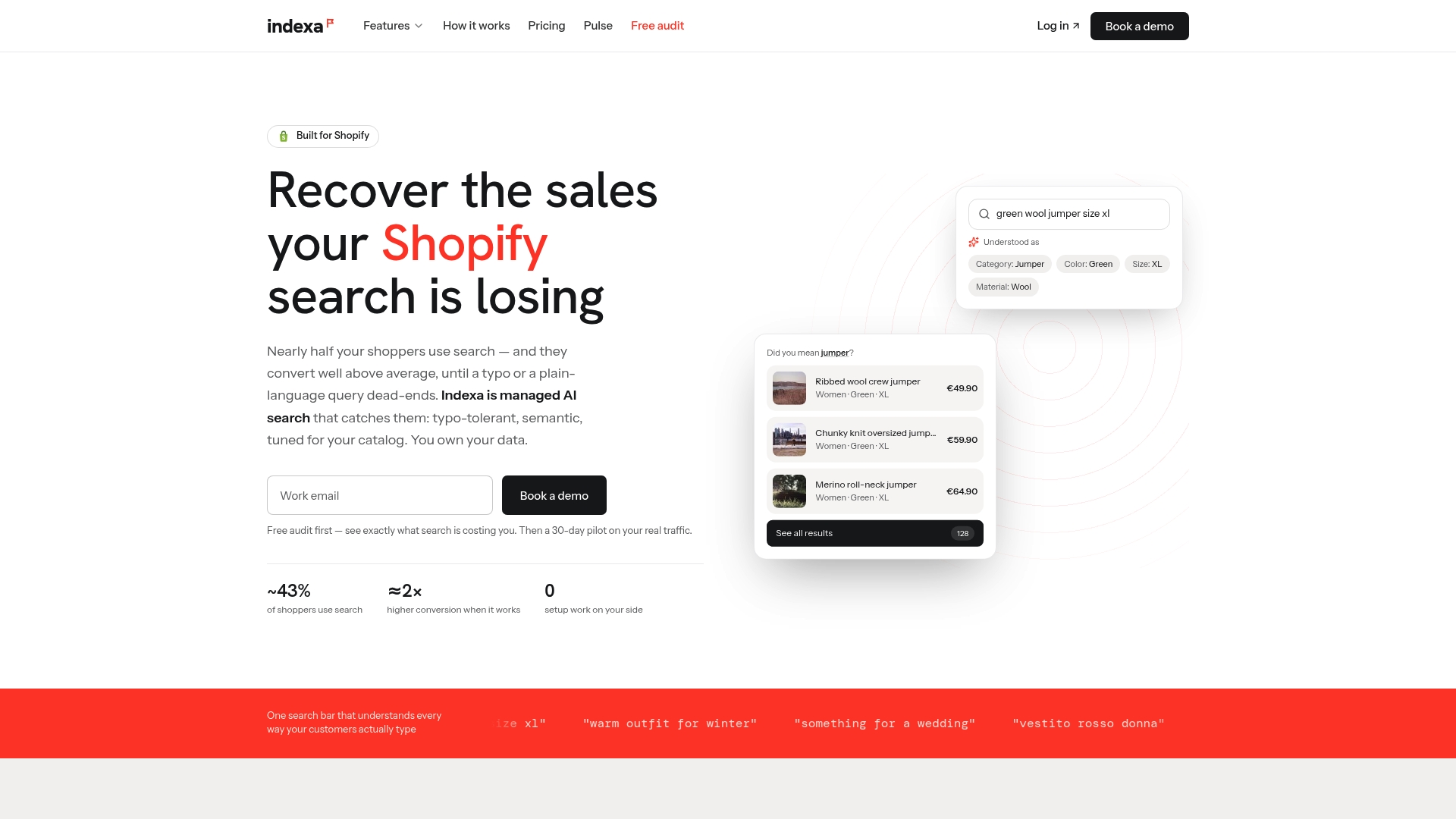
Indexa runs a fully managed AI search and discovery layer for Shopify stores, with typo-tolerant and semantic search that understands what a shopper meant even when the query is misspelled or phrased in natural language. Because it’s tuned continuously on your actual store data rather than left to a fixed algorithm, the recommendations it surfaces tend to stay relevant even as your catalog grows or shifts across languages. There’s no setup burden on your end, and it goes live in minutes rather than requiring engineering time you may not have.
If your related products feel thin, your team is stretched too thin to build custom API integrations, or you’re running a multilingual storefront where description matching quietly falls short, see how Indexa compares as a Search & Discovery upgrade and get a free audit of what your current search and recommendations setup might be costing you in lost sales.
Shopify Docs Worth Bookmarking
- Show related products on product pages — the core reference for algorithm inputs and API usage
- Adding a related products section — admin steps for theme setup and manual overrides
- Customize recommendations with Search & Discovery — eligibility rules and display mode settings
- Show complementary products — the lazy-load pattern for developers
Sources
- Shopify
- Adding a related products section — Shopify Help Center
- Customize product recommendations with Shopify Search & Discovery — Shopify Help Center
- Learnshopify
FAQ
What’s the Difference Between Related and Complementary Products on Shopify?
Related products are substitutes, similar or alternative items, while complementary products are add-ons meant to be bought alongside the current item, and Shopify’s API distinguishes them through the intent parameter.
How Many Related Products Should I Show on a Product Page?
Shopify recommends showing 2 to 4 products by default, even though the API can return up to 10, since more cards on screen tend to hurt focus and mobile performance.
Why Are Some of My Products Not Showing Up in Recommendations?
The product likely fails an eligibility rule: it may be a draft, priced at $0, a gift card, unpublished to the Online Store channel, or affected by an out-of-stock setting.
Can I Manually Choose Which Related Products Appear?
Yes. Through Apps > Search & Discovery > Product recommendations, you can select up to 10 manual related or complementary products per item and choose whether they display alone or ahead of the automated picks.
Does Shopify’s Algorithm Work the Same for Multilingual Stores?
Not fully. Description-based similarity matching only works on English-language storefronts, so multilingual stores should lean more heavily on manual Search & Discovery overrides or a managed solution like Indexa to keep recommendations relevant across languages.
What Products Sell Most on Shopify?
Fashion and apparel, health and beauty, and home goods consistently rank among the top-performing categories on Shopify, largely because they lend themselves well to visual merchandising and cross-sell through related and complementary product blocks.
Recommended
Make discovery work harder.
See what your Shopify search could do better with a free, hands-on audit.
Get your free search audit