Autocomplete for Shopify Search: Setup, Limits, Design
How Shopify search autocomplete works, how to turn it on in a theme or Hydrogen, where it stops, and how to design suggestions that sell.

Autocomplete for Shopify Search: Setup, Limits, Design
Shopify search autocomplete is the dropdown that appears while a shopper types and suggests products, collections, pages and searches before they press Enter. You can switch it on in minutes, but a stock setup only matches what your catalog data already says. A managed layer, like the one we run at Indexa, tunes suggestions to how your shoppers actually type, misspell and describe products. This guide covers what autocomplete does, how to set it up in a theme and in Hydrogen, and how to design suggestions that turn searches into orders.
TL;DR
- Shopify calls its autocomplete predictive search: it guesses what shoppers are thinking as they type and shows suggestions before they submit.
- In a standard theme it is a setting plus a few display choices. In a Hydrogen storefront there is no theme, so the dropdown has to be built into the storefront code.
- Suggestions are only as good as your product titles, types, tags and vendor names, because those are the fields the search reads.
- Good autocomplete design means few, relevant, deduplicated suggestions, a mobile-friendly layout, keyboard and screen reader support, and a useful answer for misspellings.
- If search is costing you sales, we tune this layer for you as a managed service, with no setup work on your side.
Table of Contents
- What autocomplete actually does on a Shopify store
- How to set up autocomplete in a standard Shopify theme
- Autocomplete in a Hydrogen storefront
- Designing autocomplete shoppers actually use
- How to test and improve autocomplete over time
- A managed option for stores that want results without the build
- Our perspective
- FAQ
- Sources
What autocomplete actually does on a Shopify store
Autocomplete shortens the path between a thought and a product. Shopify describes predictive search as a typeahead feature: as customers type, it suggests matches before the full query is submitted. The dropdown can surface products, collections, pages and articles, so a shopper typing “linen” might see a linen shirt, a linen collection and your fabric care article in one glance.
Typeahead adds one more layer. Shopify’s own February 2023 article on storefront search says typeahead adds a dynamic list of suggested searches while shoppers type. These are query suggestions, not products. They steer people toward phrases that return results.
It helps to separate three capabilities that are often blurred together:
| Capability | What it does | Example |
|---|---|---|
| Predictive search (autocomplete) | Guesses during typing and shows suggestions | “den” shows denim jackets |
| Typo tolerance | Finds results despite spelling mistakes | “tablle” still finds tables |
| Semantic search | Interprets intent beyond exact keywords | “something to wear to a beach wedding” |
Shopify’s Search and Discovery page lists all three as distinct capabilities. Autocomplete only works well when the other two sit behind it. A dropdown that suggests “jeans” but returns nothing for “jenas” teaches shoppers that your search is unreliable.
Why it matters for fashion and specialty stores
Fashion shoppers type in fragments, brand shorthand and descriptions. They write “flowy midi”, “puffer vest”, “sneakers white” or a color plus an occasion. Autocomplete earns its place because it shows them the vocabulary your catalog uses, and it does it before they give up. Shopify frames the rationale as friction reduction: typeahead and typo tolerance help shoppers reach relevant products faster, and more specific suggested terms improve the match with what they intend.
For a small brand, this is one of the few places you can match the experience of a much larger store without a big engineering team.
How to set up autocomplete in a standard Shopify theme
If your store runs on an Online Store 2.0 theme, setup is mostly configuration. Exact labels differ by theme, so use this as the general route.
- Open the theme editor and go to Theme settings, then Search.
- Enable predictive search. Themes that support it typically add a checkbox and a few display options, such as showing the product vendor or price and searching SKUs and tags. One theme vendor’s documentation walks through exactly these settings.
- Choose what to show. The Shopify Search & Discovery app is where you pick whether the dropdown shows suggested queries, products, collections, pages and blog articles.
- Save and test on desktop and a real phone. Type partial words, brand names and a deliberate misspelling.
- Check your languages. Predictive search availability depends on the store language, and Shopify, not the theme, determines the predictive search behavior.
Where each step goes wrong:
- Step 2 goes wrong when the theme is older or heavily customized and the setting is missing. Then the dropdown has to be added in code.
- Step 3 goes wrong when you show everything. Products, collections, pages and articles in one narrow dropdown crowd each other out.
- Step 4 goes wrong when you only test queries you already know work. Test what shoppers really type, which you can read from your search analytics.
When we set up search for a store, the setup is done for the merchant. Our service needs no setup or coding on your side and can be activated in minutes, with native storefront integration so the experience lives inside your own theme.
What the default fields and limits mean
Shopify’s theme-scripts documentation spells out what the predictive search component supports. It handles product, page, article and collection results, with a default and maximum limit of 10, plus configurable handling of unavailable products and search fields.
By default, product matching looks at the title, product type, variant title and vendor. Fields such as body, tag, variant SKU and variant barcode can be added when configured through the API.

This has a practical consequence for fashion merchants. If your titles read “Everly Top” and your shoppers type “black ribbed tank”, the words they use may live only in descriptions or tags, which the default does not read. Product copy and tags matter for search, not only for SEO. Workflows that generate and edit product descriptions in bulk can help fill those fields consistently, and Indexa works from the same catalog data and syncs it for you.
The cap of 10 results also shapes design. Ten slots is plenty for a dropdown, but it is a signal to make each slot count. We cover this in our guide to search UX beyond the 10 result limit, and the broader setup options are in our predictive search walkthrough.
Autocomplete in a Hydrogen storefront
Hydrogen is Shopify’s framework for building custom headless storefronts. That changes how autocomplete works: there is no theme editor and no checkbox. Whatever the shopper sees while typing is a component your developers write, wired to a data source for suggestions.
What that means in practice:
- You own the interface. The input, the dropdown, the loading state, the keyboard handling and the mobile layout are all code.
- You own the request path. Each keystroke triggers a request, so debouncing (waiting a few hundred milliseconds after the last key before searching) and caching matter for speed.
- You own the edge cases. Empty results, misspellings, out-of-stock products and multiple languages all need handling you would otherwise inherit from a theme.
Headless builds are where search quality most often gets postponed, because launching the storefront takes all the budget. Indexa supports native storefront integration including Shopify Hydrogen, so a headless store can have typo-tolerant, semantic search and autocomplete without your team building the search layer from scratch. Our catalog syncing and no-code console mean merchandisers can adjust results without a developer release.
Designing autocomplete shoppers actually use
Setup gets the dropdown on screen. Design decides whether anyone clicks it. These are the choices that matter most.
Keep suggestions short, specific and unique
Shopify’s guidance points to more specific suggested terms improving the match with search intent. Aim for a handful of query suggestions and a handful of products, not a wall of text. Watch for duplicates: “women’s jacket”, “womens jacket” and “jacket women” should collapse to one line.
If you want a structured way to improve suggestion quality and match shopper intent, our pages on search relevance and data cleanup and synonym mapping for brands go step by step.
Handle misspellings inside the dropdown
Shopify Search uses typo tolerance, for instance helping a shopper who types “tablle” instead of “table” still find relevant results. Check that your dropdown behaves the same way as your results page. Type three common misspellings of your best-selling product and see whether suggestions appear. If they do not, shoppers conclude you do not carry the item.
Our fuzzy search guide shows how to find these misses, and the spell correction audit lays out a 30 day approach to recover those sales.
Design for thumbs first
Most fashion browsing happens on phones. A few rules hold up across themes:
- Make each suggestion a large tap target with enough spacing between rows.
- Keep the dropdown from being hidden by the on-screen keyboard.
- Show a small product image and price for product suggestions, since fashion shoppers judge by sight.
- Make sure tapping a query suggestion runs the search at once instead of only filling the box.
Make it accessible
An autocomplete that works only with a mouse locks out part of your audience. At a minimum, shoppers should be able to move through suggestions with the arrow keys, select with Enter, and close the dropdown with Escape. Screen readers need the dropdown announced as a list of options, with the focused option identified. If your theme’s component does not do this, raise it with the theme developer or have it fixed in your storefront code.
Decide what shows before anyone types
When the search box is focused but empty, you have a free moment. Show trending searches, popular collections or recently viewed items. For specialty stores, this empty state is a good place to teach shoppers your own vocabulary: the names of your fits, fabrics and collections.
Do not forget stop words, synonyms and long-tail queries
Three problems commonly sit behind a weak dropdown:
- Stop words: filler words like “for” or “with” can break matches. See how to fix stop word misses without editing the list.
- Synonyms: shoppers say “sneakers”, “trainers” or “kicks”. Your catalog may say only one.
- Long-tail queries: specific, descriptive searches are often where sales get lost, covered in our long tail queries guide. Semantic search is built for these, as this guide to the top 20 failures explains.
How to test and improve autocomplete over time
Autocomplete is not a set-and-forget feature. Catalogs change, seasons change and shoppers invent new words. A simple routine keeps it healthy.
- Pull your top searches and your no-result searches from your search analytics every month.
- Test the top 20 queries by hand on a phone and a laptop. Do the first suggestions match what the shopper most likely wants?
- Test deliberate errors: a dropped letter, a swapped letter, a plural, a space in the wrong place.
- Test natural phrases such as “dress for a summer wedding” to see whether the system can interpret intent.
- Fix the data first. Rename unclear titles, add missing tags, and map synonyms. Our relevance testing guide explains how to score results so you can see whether a change helped.
- Repeat after each catalog drop or sale.
Where it goes wrong: merchants fix one query at a time and never look at patterns. Ten misses with the same root cause, such as a missing synonym, are one fix, not ten. This is the repetitive tuning work we take off merchants’ hands: our service includes ongoing relevance tuning based on real store data, with an integrated analytics view and a no-code console.
If you want a structured self-review first, our free search audit checklist covers the same ground, and the site search revenue calculator helps you size what weak search may be costing.
A managed option for stores that want results without the build
If you would rather not maintain this yourself, Indexa is a fully managed AI-driven search and discovery service for Shopify stores. It includes typo-tolerant and semantic search, multilingual support, synonym mapping, product recommendations and a visual merchandising grid editor for search and category pages. You keep ownership of your data and are billed month to month with no per-request fees. Migration support is available if you are moving from another search platform.
You can start with a free audit to see where your search is missing sales, or look at the 30-day pilot and pricing details. More about the service is on our home page.
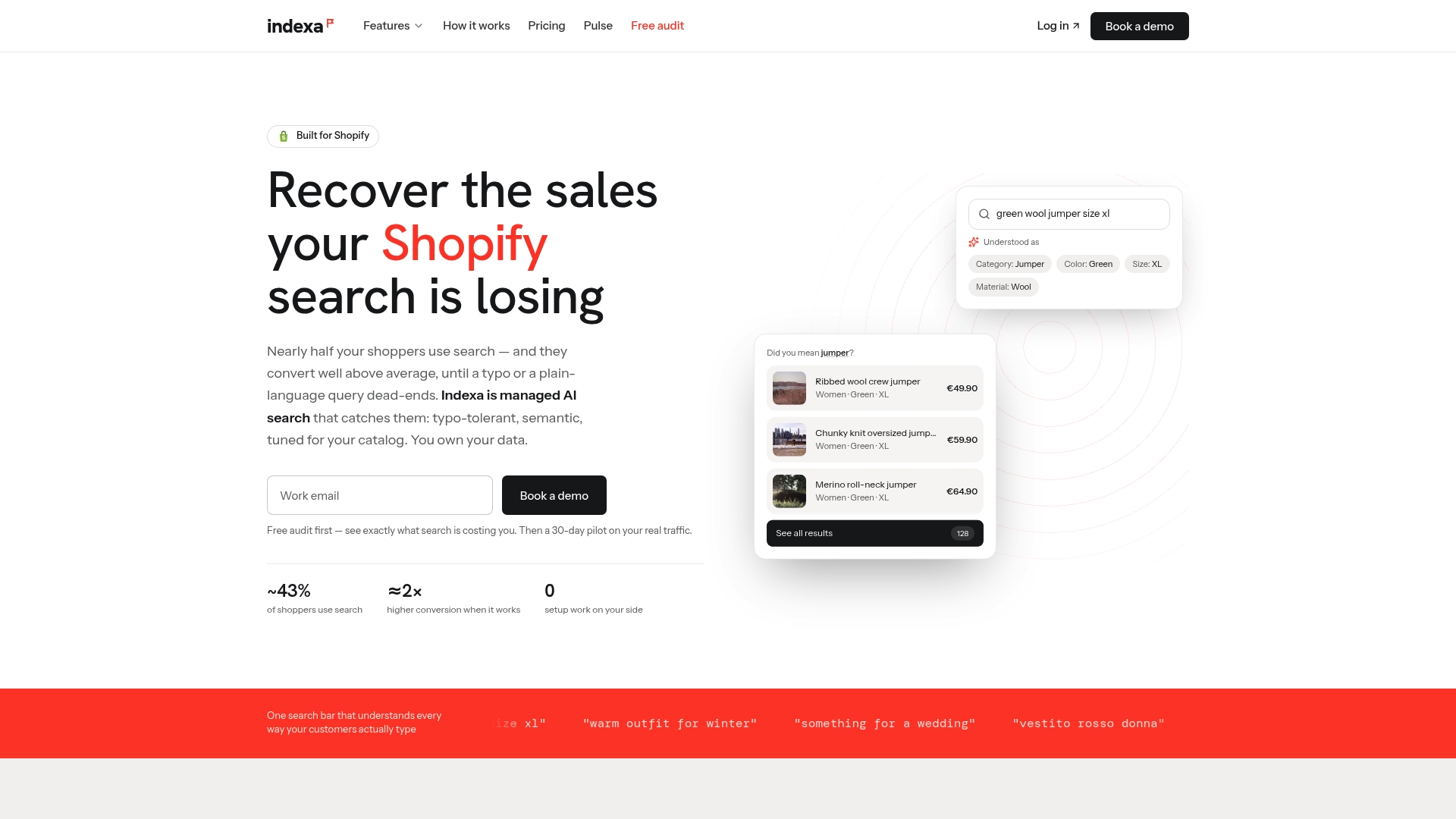
If you are comparing your current setup with Shopify’s built-in tools, see how a managed upgrade works.
Our perspective
Autocomplete looks like a small interface feature, but it is the first thing a shopper’s words meet in your store. If the dropdown understands them, they keep going. If it does not, they leave and you never see why.
We believe search for a Shopify store should be treated as a managed service, not a one-time install. Shoppers misspell, abbreviate and describe things in their own language, and catalogs change every season. The work that matters, mapping synonyms, tuning relevance against real store data and arranging results visually, never ends.
That is why we built Indexa to be native to Shopify, with no required setup or coding on the merchant’s side. We handle installation and ongoing tuning, and the merchant keeps ownership of the data. For small brands competing with larger stores, that is how you get a polished search experience without hiring a search team.
Barikreativa
FAQ
What is the difference between autocomplete and predictive search on Shopify?
They describe the same experience. Shopify’s term is predictive search, a typeahead feature that suggests matches as the customer types. It can show products, collections, pages and articles, and suggested queries through typeahead.
How many results can Shopify’s predictive search show?
The documented default and maximum limit in Shopify’s theme-scripts predictive search component is 10 results. It supports products, pages, articles and collections. Use those slots for your strongest matches and keep suggestions deduplicated.
Does autocomplete work with misspellings?
Shopify Search includes typo tolerance, so a query like “tablle” can still find tables. The best test is to type common misspellings of your top products into the live dropdown on your phone. Synonym mapping and semantic search extend this to different words, not only different spellings.
Can I add autocomplete to a Hydrogen storefront?
Yes, but in Hydrogen the dropdown is part of your storefront code rather than a theme setting. Indexa supports native integration with Shopify Hydrogen, so a headless store can get typo-tolerant, semantic search and autocomplete from us without building the search layer itself.
What should I fix first if suggestions look irrelevant?
Start with product data. Titles, product types, tags and vendor names are the fields the default search reads, so unclear titles produce unclear suggestions. Then add synonyms for the words shoppers use that your catalog does not.
Sources
- Shopify Search and Discovery
- Storefront Search Optimization: How to Improve Results (Shopify)
- theme-predictive-search README (Shopify theme-scripts)
- Search bar: how to set up predictive search
Recommended
Make discovery work harder.
See what your Shopify search could do better with a free, hands-on audit.
Get your free search audit